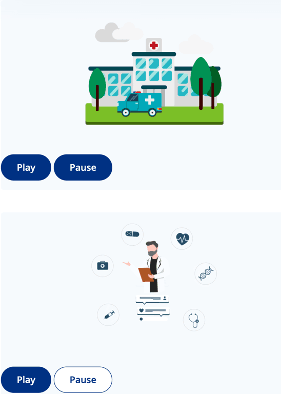
Integrating Lottie Animation in Liferay
In this guide, we’ll walk through installing and using @lottiefiles/dotlottie-wc inside a Liferay environment, using Yarn as our package manager.

What is dotLottie?
dotLottie is an open, lightweight file format designed to package and optimize Lottie animations. Instead of serving a Lottie animation as a standalone JSON file often accompanied by image assets a dotLottie file bundles everything into a single, compressed container. This makes animations easier to manage, faster to load, and simpler to distribute across platforms.
Dotlottie-wc
Dotlottie-wc is a web component that lets you embed Dotlottie animations using a custom HTML tag:
< dotlottie-wc src="/path/to/animation.lottie" autoplay="true" loop="true"></dotlottie-wc >
Install the Web Component DotLottie-wc:
Open your Theme folder in the terminal (example: “themes -> my-theme”) or go to your client extension in the terminal.
- Run this comment: yarn add @lottiefiles/dotlottie-wc
(If you node version give this issues: “the engine "node" is incompatible with this
module” use: “yarn add @lottiefiles/dotlottie-wc --ignore-engines”.)
This adds the dependency into “package.json” under “dependencies” (or your chosen bundler) and add dotLottie to your yarn.lock.
Examples
download a lottie file animation on https://lottiefiles.com/free-animations/animations as a example to follow the next steps.
save the Lottie file in your Liferay env. in documents and media.
Open the Lottie file and look for “Latest version URL” (in dutch “Laatste versie URL”)
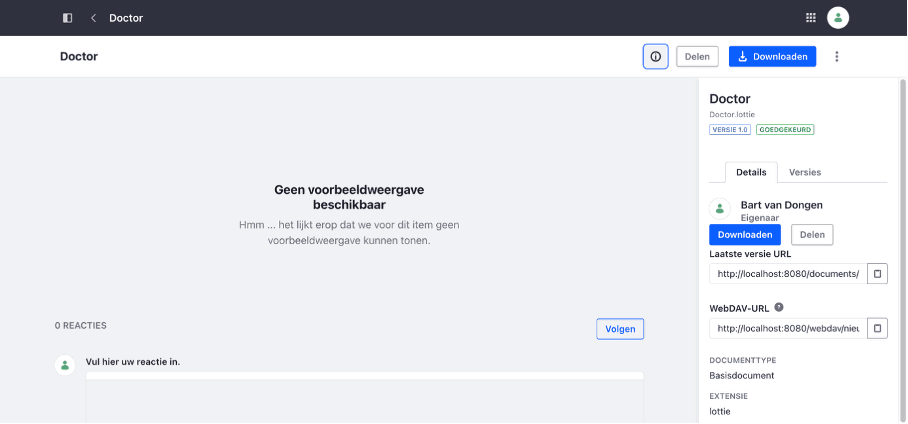
Copy this link and make a new web content structure for the Lottie file animations.
New Web Content Structure:
- Name: Lottie Animation
- Add text field:
- Label: “Latest version URL”
- Field Reference: “LatestversionURL”
- Add text field:
- Label: “Aria-Label”
- Field Reference: “AriaLabel”
(If you like you could group it as a field group and make it repeatable to use it as a slider)
Save the web content structure.
Create a new web content template:
- Name: “Lottie Animation”
- Structure:” Lottie Animation”
The Lottie Animation template needs to assign animationURL and ariaLabel.
Connect the web content fields: “Latest version URL” & “Aria-Label” if it has content.
Template example code:
<#assign animationURL = "" /><#assign ariaLabel = "" /><#if (LatestVersionURL.getData())??> <#assign animationURL = LatestVersionURL.getData() /></#if><#if (AriaLabel.getData())??> <#assign ariaLabel = AriaLabel.getData() /></#if>
<div class="lottie-container"> <div class="lottie-card"> <dotlottie-wc aria-label="${ariaLabel}" class="lottie-frame" src="${animationURL}" style="width: 600px;height: 300px" speed="1" autoplay loop ></dotlottie-wc> <div class="controls"> <button id="play-btn" class="button play-btn "> Play </button> <button id="pause-btn" class="button pause-btn"> Pause </button> </div> </div></div>
Save the “Lottie Animation” Template.
Web content article
Create a new web content for example “Lottie animation example” article fill in the fields and the dotlottie-wc now uses the “Latest version URL” field via “${animationURL}” in the src field to show the lottie file and “aria label” field via “${ariaLabel}” as the aria-label in the html for Accessibility. Next we need to make the buttons and dotlottie-wc work. We do this inside a JavaScript file.
Make a JavaScript file
In our project we use a scripts.js file in the theme where we import all most all other JavaScript files.
In this file I import the lottieContainer.js and add:
document.querySelectorAll(".lottie-container").forEach((item) => { (() => new lottieContainer(item))();});
This will only trigger the lottieContainer.js if there is a lottie-container class on the page.
lottieContainer.js
Import “@lottiefiles/dotlottie-wc” with a if statement to import the DotLottie integration
if (!customElements.get('dotlottie-wc')) { import('@lottiefiles/dotlottie-wc');}
The if statement prevents the import to be triggered twice which will break the javascript code.
As a example I have made a lottie-container.js
if (!customElements.get('dotlottie-wc')) { import('@lottiefiles/dotlottie-wc');}
// this file is a simple lottie-container for testing purposesexport default class lottieContainer { constructor(element) { this.lottieContainer = element; this.init(); }
init() { if (!this.lottieContainer) { console.error('CarouselBlock: No carousel block element provided'); return; }
this.lottieCards = this.lottieContainer.querySelectorAll('.lottie-card'); this.setupDotLottieEvents(); }
setupDotLottieEvents() { const initializeLottie = () => { this.lottieCards.forEach((lottieCard) => { const lottieElement = lottieCard.querySelector('dotlottie-wc'); if (lottieElement) { // Wait for the custom element to be ready const checkReady = () => { if (lottieElement.dotLottie) { console.log('Found lottie element'); const dotLottie = lottieElement.dotLottie; // Listen to events console.log('Lottie loaded:', lottieElement); console.log('dotLottie loaded:', dotLottie); lottieCard.querySelector(".play-btn").addEventListener("click", () => dotLottie.play()); lottieCard.querySelector(".pause-btn").addEventListener("click", () => dotLottie.pause()); } else { // If dotLottie is not ready yet, wait a bit and try again requestAnimationFrame(checkReady); } }; checkReady(); } }); };
// Execute immediately for navigation if (document.readyState === 'complete') { initializeLottie(); } else { // Wait for page load on refresh window.addEventListener('load', initializeLottie); } }}
The first part retrieves the element (lottie-container) and search the lottie-container for the class “lottie-card”.
constructor(element) { this.lottieContainer = element; this.init();}
init() { if (!this.lottieContainer) { console.error('CarouselBlock: No carousel block element provided'); return; } this.lottieCards = this.lottieContainer.querySelectorAll('.lottie-card'); this.setupDotLottieEvents();}
setupDotLottieEvents()
the setupDotlottieEvents checks if each lottie-card has a “dotlottie-wc” element.
If so it adds eventlisteners to the buttons (“.play-btn” & “.pause-btn”).
setupDotLottieEvents() { const initializeLottie = () => { this.lottieCards.forEach((lottieCard) => { const lottieElement = lottieCard.querySelector('dotlottie-wc'); if (lottieElement) { // Wait for the custom element to be ready const checkReady = () => { if (lottieElement.dotLottie) { console.log('Found lottie element'); const dotLottie = lottieElement.dotLottie; // Listen to events console.log('Lottie loaded:', lottieElement); console.log('dotLottie loaded:', dotLottie); lottieCard.querySelector(".play-btn").addEventListener("click", () => dotLottie.play()); lottieCard.querySelector(".pause-btn").addEventListener("click", () => dotLottie.pause()); } else { // If dotLottie is not ready yet, wait a bit and try again requestAnimationFrame(checkReady); } }; checkReady(); } }); };
For more information check:
https://developers.lottiefiles.com/docs/dotlottie-player/dotlottie-wc/
to find other options like stop instead of pause.
Client extension
Instead of using JavaScript files in the theme. We could use a JavaScript client extension. By using Client extensions it uses Liferay's modern, recommended approach for extending functionality. They provide better maintainability, upgrade compatibility, and deployment flexibility compared to embedding JavaScript in themes.
The folder “Dotlottie-player-js” is my folder name of the JavaScript client extension. Inside the folder there are the following files:
- client-extension.yaml
- package.json
- vite.config.js
- yarn.lock
- src folder -> main.js
The client-extension.yaml file is the heart of every client extension project. It's where you declare what your extension is, what it does, and how Liferay should deploy it.
client-extension.yaml example:
assemble: - from: dist into: staticdotlottie-player-js: name: dotlottie player JS type: globalJS url: global.*.js
Let's break down what each property means:
Assemble Block
- from: dist - Source folder containing your built JavaScript files
- into: static - Destination folder in the deployment package where files are copied
Client Extension Definition
- dotlottie-player-js: - Unique identifier for this extension (must be unique across Liferay)
- name: dotlottie player JS - Display name shown in the Liferay UI
- type: globalJS - Extension type that loads JavaScript on every page site-wide
- url: global.*.js - File path to your JavaScript. The * wildcard matches any characters, useful for cache-busted filenames like global.a3f8d9c2.js
Supporting Configuration Files
package.json
The package.json file defines your JavaScript project's metadata and dependencies. Key sections include:
- name & version - Project identification
- scripts - Build commands like "build": "vite build" that compile your code
- dependencies - Runtime libraries your code needs (e.g., @dotlottie/player-component)
- devDependencies - Build tools needed during development (e.g., vite, typescript)
package.json example:
{ "name": "@umcg/dotlottie-player-js", "version": "1.0.0", "private": true, "type": "module", "scripts": { "build": "vite build", "dev": "vite" }, "dependencies": { "@lottiefiles/dotlottie-wc": "^0.8.11" }, "devDependencies": { "vite": "^4.5.14" }}
When you run yarn build, it executes the build script which triggers Vite to compile your source code into the dist/ folder.
yarn.lock
The yarn.lock file is automatically generated and locks exact versions of all dependencies and their sub-dependencies. This ensures:
- Reproducible builds - Everyone gets the same package versions
- Consistency - Prevents "works on my machine" issues
- Security - Locks to tested, compatible versions
Never edit this file manually, it's updated automatically when you install or update packages with yarn install.
Make use that @lottiefiles/dotlottie-wc is installed if not run: “yarn add @lottiefiles/dotlottie-wc --ignore-engines” sometimes there are difference engine version in one client extension. --ignore-engines prevent this version error.
vite.config.js
The vite.config.js file configures how Vite builds your JavaScript. Here's a breakdown using the dotLottie player example:
import { defineConfig } from 'vite';import { resolve } from 'path';
export default defineConfig({ build: { lib: { entry: resolve(__dirname, 'src/main.js'), name: 'dotlottiePlayerJS', fileName: 'global', formats: ['iife'] }, rollupOptions: { output: { entryFileNames: 'global.[hash].js', } } }});
- defineConfig - Provides TypeScript intellisense for configuration
- build.lib.entry - Entry point file (src/main.js). This is where Vite starts bundling your code
- build.lib.name - Global variable name (dotlottiePlayerJS) exposed in the browser window
- build.lib.fileName - Base filename for output (global), which becomes global.js
- build.lib.formats: ['iife'] - Output format. IIFE (Immediately Invoked Function Expression) creates a self-executing script perfect for browser use without a module system
- rollupOptions.output.entryFileNames - Final filename pattern with hash (global.[hash].js). The [hash] ensures unique filenames for cache-busting, matching your url: global.*.js wildcard pattern
Result: Vite compiles src/main.js into dist/global.a3f8d9c2.js (with unique hash), which matches the wildcard in your client-extension.yaml
The Complete Workflow
- Development: Write code, manage dependencies in package.json
- Install: Run yarn install (creates/updates yarn.lock)
- Build: Run yarn build → Vite compiles code using vite.config.js → Outputs to dist/
- Package: Gradle reads client-extension.yaml → Copies dist/ to static/ in LUFFA
- Deploy: LUFFA deployed to Liferay
- Runtime: When a page loads, Liferay injects a <script> tag pointing to your JavaScript file (matching the global.*.js pattern) on every page the Javascript client extension is loaded.
Adding the JavaScript client extension to a page
edit a page, go to the top right corner click on the dots and click on “Configure” then click on “Design” scroll down to Customization and click on JavaScript and add the Javascript client extension. Save the configurations and publish the page.
Display the content
Add Web Content Display to the page you would like to add the Lottie animation.
Click on the 3 dot’s at the top right corner and then click on Configuration. Select the Web content (“Lottie animation example”) and select the “Lottie animation” template.
The lottie animation is now displayed on your website. You could expand on this in the future with the Asset Publisher or create a content slider with a template and JavaScript.